

Forest and Domain Functional Levels in Active Directory: Raise or Lower Explained
Introduction
In Active Directory, Forest Functional Level (FFL) and Domain Functional Level (DFL) define what features are available and which Windows Server versions can operate as domain controllers.
If you’ve ever tried to add a new server as a Domain Controller (DC) or Additional Domain Controller (ADC), mismatched functional levels might block you.
This blog explains:
- What Forest and Domain Functional Levels are.
- How to check current levels.
- How to raise or lower them (step-by-step).
- Practical examples with Windows Server 2012, 2016, 2019, and 2022.
- Important interview points.
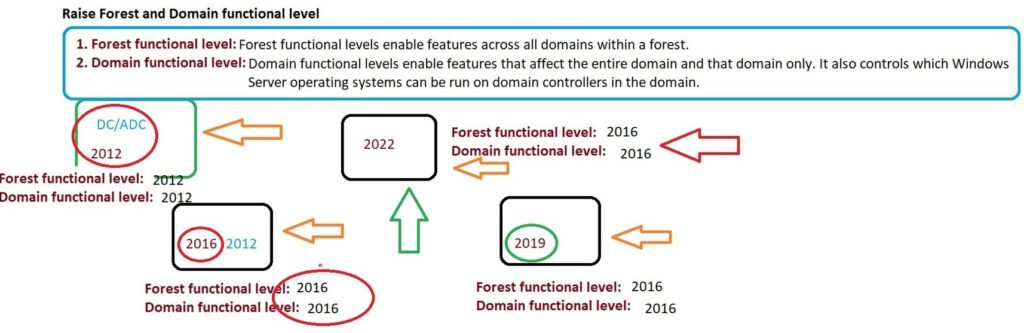
What Are Forest and Domain Functional Levels?
- Forest Functional Level (FFL):
Determines the features available across all domains in the forest.
Example: At Windows Server 2016 FFL, advanced Active Directory features become available. - Domain Functional Level (DFL):
Defines features available only within a domain.
Also controls which Windows Server versions can act as DCs in that domain.
👉 In short: FFL = forest-wide features, DFL = domain-specific features.
Example: Why Functional Levels Matter
Suppose you have servers running:
- Windows Server 2012
- Windows Server 2016
- Windows Server 2019
- Windows Server 2022
If even one server runs at 2012 level, your maximum possible functional level is 2012.
You cannot raise the FFL/DFL to 2016 or 2019 until you upgrade or remove the 2012 DC.
Scenario:
- All servers = 2016 → You can raise FFL/DFL to 2016.
- Mixed servers (2012 + 2019) → Functional level must remain at 2012.
That’s why sometimes you must decrease functional levels to allow an older server to join as a DC.
Checking Forest & Domain Functional Levels
Graphical Method:
- Open Server Manager → Tools → Active Directory Domains and Trusts.
- Right-click Active Directory Domains and Trusts → Raise Forest Functional Level.
- For DFL: Right-click your domain name → Raise Domain Functional Level.
PowerShell Method:
# Check Forest Functional Level
Get-ADForest | Select-Object ForestMode

# Check Domain Functional Level
Get-ADDomain | Select-Object DomainMode
Raising or Lowering Functional Levels
Raise Functional Level (GUI):
- Ensure all DCs support the new level.
- In AD Domains and Trusts → Right-click → Raise Forest Functional Level.
- Select target level (e.g., Windows Server 2016).
Lower Functional Level (PowerShell):
There’s no GUI option to lower. Use PowerShell:
# Lower Forest Functional Level to 2012 R2
Set-ADForestMode -Identity "it4u.in" -ForestMode Windows2012R2Forest

# Lower Domain Functional Level to 2012 R2
Set-ADDomainMode -Identity "it4u.in" -DomainMode Windows2012R2Domain
⚠️ Run PowerShell as Administrator. Otherwise, commands will fail.
Troubleshooting Example
If you try to add a Windows Server 2012 DC to a forest at 2016 FFL, installation fails with:
The functional level of the forest is incompatible with this operating system
✅ Solution: Lower FFL/DFL from 2016 → 2012 R2 using PowerShell.
Interview Question Tip
A common interview question is:
“What is the maximum Forest and Domain Functional Level available today?”
As of now:
- Maximum FFL/DFL = Windows Server 2016 (2019 & 2022 also use 2016 functional level).
So even if you run Server 2019 or 2022, the highest available level is still 2016.
Conclusion
- Forest Functional Level applies to the entire forest.
- Domain Functional Level applies to a single domain.
- You can raise levels via GUI, but to lower, you must use PowerShell.
- Always check compatibility before promoting or demoting DCs.
By mastering these concepts, you’ll avoid common AD setup errors and handle interview questions confidently.
Frequently Asked Questions (FAQ)
1. What is a Forest Functional Level (FFL) in Active Directory?
A Forest Functional Level defines the features available across all domains in the forest. It determines the minimum version of Windows Server required for all domain controllers in that forest.
2. What is a Domain Functional Level (DFL)?
A Domain Functional Level specifies the features available within a single domain. It also controls which Windows Server versions can operate as domain controllers in that domain.
3. Can I raise or lower functional levels at any time?
- Raising: Yes, you can raise the level if all domain controllers support the newer version.
- Lowering: No GUI option exists; you can only lower functional levels using PowerShell commands.
4. What happens if my servers run different versions (2012, 2016, 2019, 2022)?
The lowest version dictates the maximum functional level. For example, if you have even one 2012 server, your forest and domain functional levels cannot go higher than 2012.
5. What is the maximum functional level available today?
As of now, the maximum Forest and Domain Functional Level is Windows Server 2016. Even if you use Windows Server 2019 or 2022, the functional level remains 2016.
6. Why do I need to lower functional levels sometimes?
If you want to add an older server (e.g., Windows Server 2012) as a Domain Controller (DC) or Additional Domain Controller (ADC), you must lower the functional level so it matches. Otherwise, the promotion will fail with compatibility errors.
7. How can I check my current functional levels?
- Graphical Method: Open Active Directory Domains and Trusts → Right-click to view “Raise Forest/Domain Functional Level.”
- PowerShell:
Get-ADForest | Select-Object ForestMode
Get-ADDomain | Select-Object DomainMode
8. Will lowering functional levels remove features?
Yes. Newer AD features may no longer be available if you downgrade. Always review requirements before lowering functional levels.






Add comment